Help: your website
How to build and edit your website in the Tozulo editor, part by part. The ? in each panel of the editor opens its part here.
The editor in one minute#
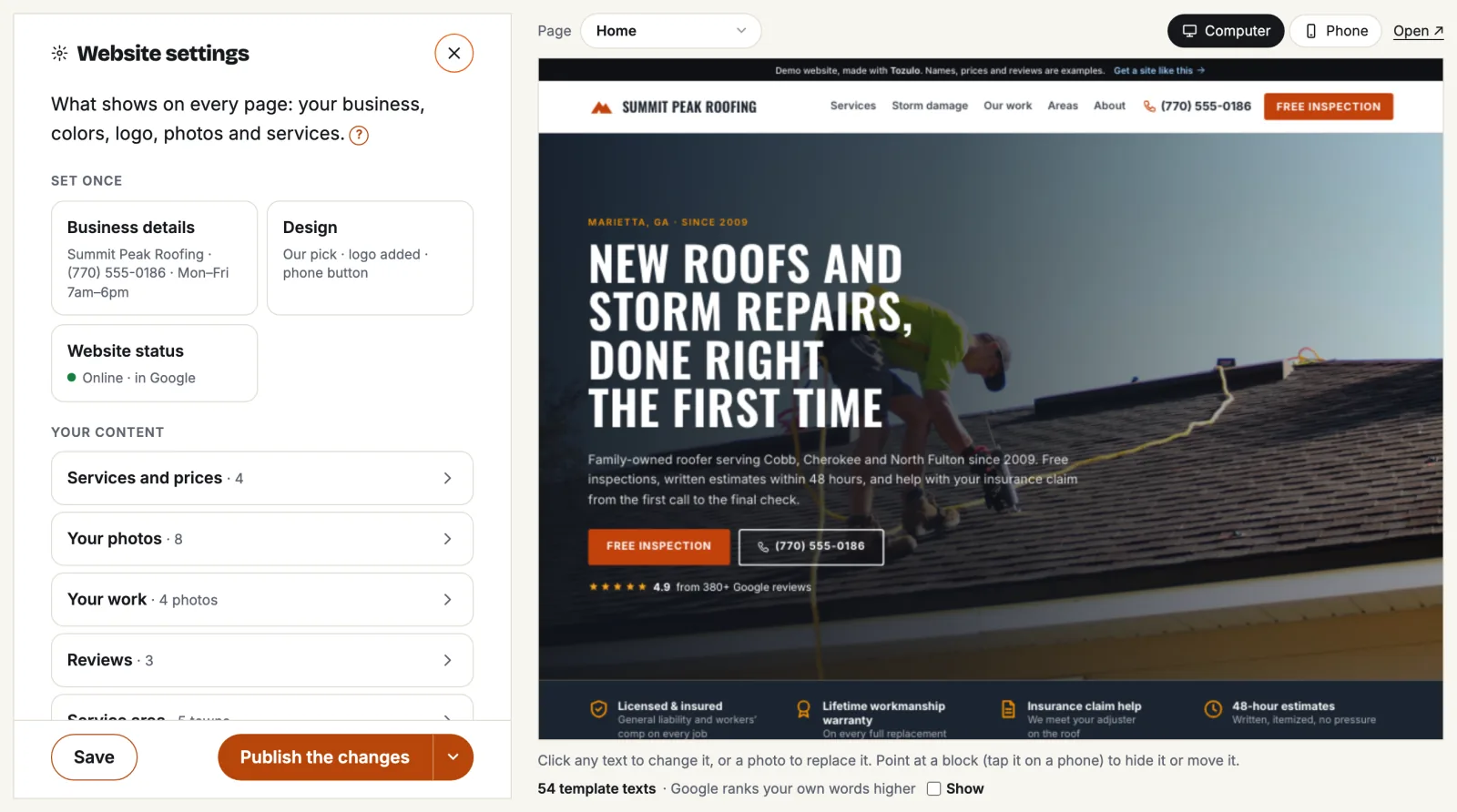
Sign in to your account and press Site editor. On the left is Website settings; on the right, your website exactly as visitors see it.
- Everything saves by itself, a second after you stop typing. The button at the bottom says Saved.
- Computer and Phone above the site show how it looks on each. Page picks the page you see; Open ↗ opens it in a new tab.
- Website settings has two parts: Set once (your business details and design) and Your content (services, photos, reviews, towns and pages). A card with an orange frame still needs something.
- Inside a panel, the arrow at the top takes you back. The × hides Website settings so the site gets the whole screen; Website settings above the site brings it back.
Business details and opening hours#
Your name, phones, email, address and license, the facts that show on every page. Fill this in first: until it is done, the card says Start here.
- Phone on the website puts Call buttons on the site. No phone? The site shows a request form instead.
- Email for website requests: where requests from your site's forms arrive.
- Street address shows only if you tick Show the street address, for a shop or office customers visit.
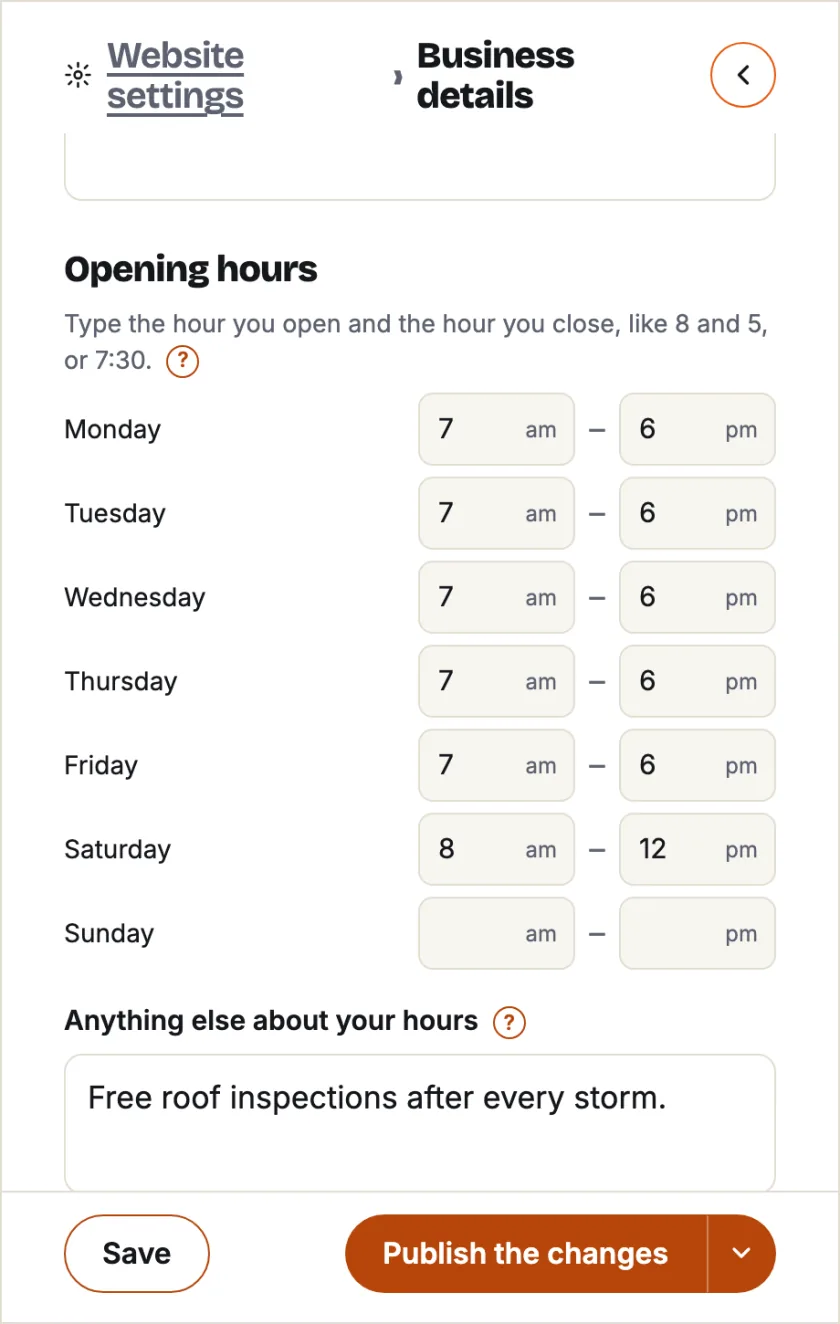
Opening hours: type the hour you open and the hour you close for each day, like 8 and 5, or 7:30. A day left empty is simply not listed. Days with the same hours are shown together (Mon–Fri 8am–5pm). Under the table, add anything else, like Closed on Thanksgiving.
Design: colors, logo, icon and header buttons#
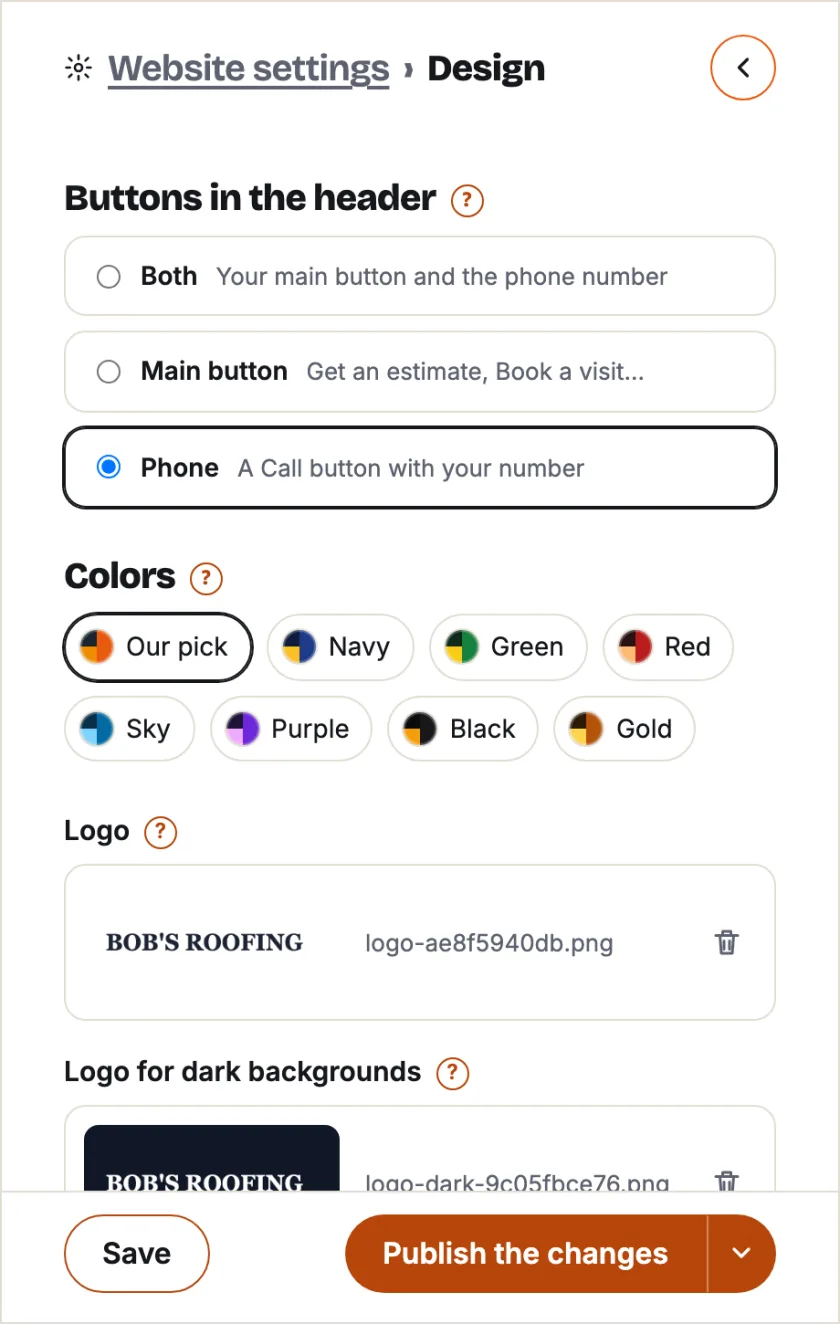
- Colors: each choice is a matched set (buttons, accents, the dark footer). Our pick keeps your template's own colors.
- Logo: SVG or PNG with a transparent background is best. Add a light version for the dark footer if you have one.
- Browser tab icon (favicon): the small square picture in the browser tab and next to your site in Google. A square image, 512 × 512 px or bigger; the mark of your logo without the words reads best.
- Buttons in the header: your main button, your phone, or both. On phones the bar at the bottom always has Call and your main button.
- Want a design made for you? Custom design is there too: we email you about it within one business day.
Edit texts and photos on the site itself#
The texts of your pages are not in Website settings: you change them right on the site.
- Click any text and type. It saves by itself. A counter shows how long it may be; Original text brings the template's words back.
- Click a photo to replace it: upload a new one or pick one of yours. A photo marked Sample photo is a stock picture waiting for yours.
- Point at a block (tap it on a phone) to hide it or move it up and down. Hidden parts stay faded in the editor and leave your live site. On your own pages and town pages you can also switch sections on and duplicate them (see Pages).
- Tick Mark texts still from the template under the site to see which words are still ours, not yours.
Services and prices#
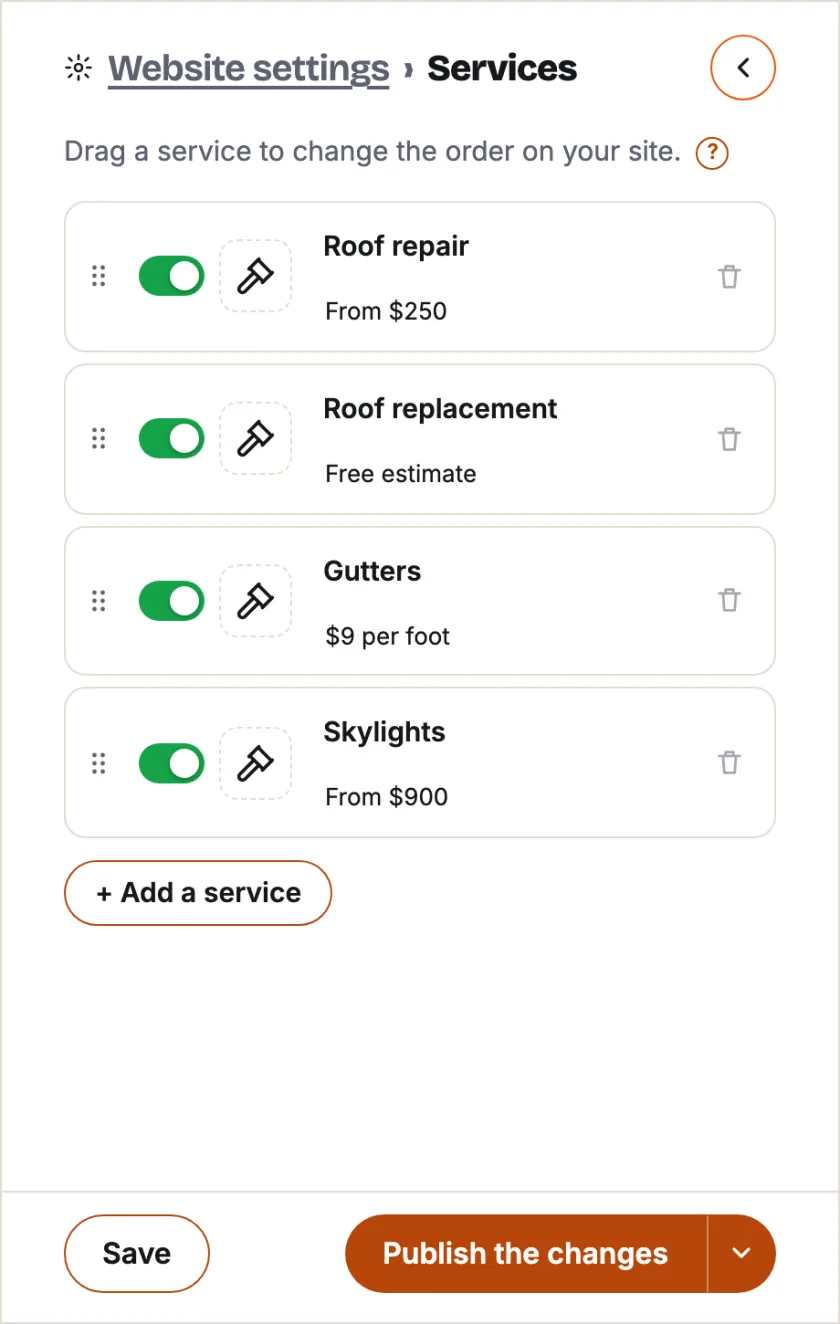
One row per service: its name and price (optional), an icon, and a switch to show it or not. Drag a row to change the order on your site. A service switched off leaves the site, but its texts and photo are kept for later.
The description of each service is on the site itself: click it there to change it. Barbershops and salons get a menu with sections and minutes, used by online booking.
Your photos#
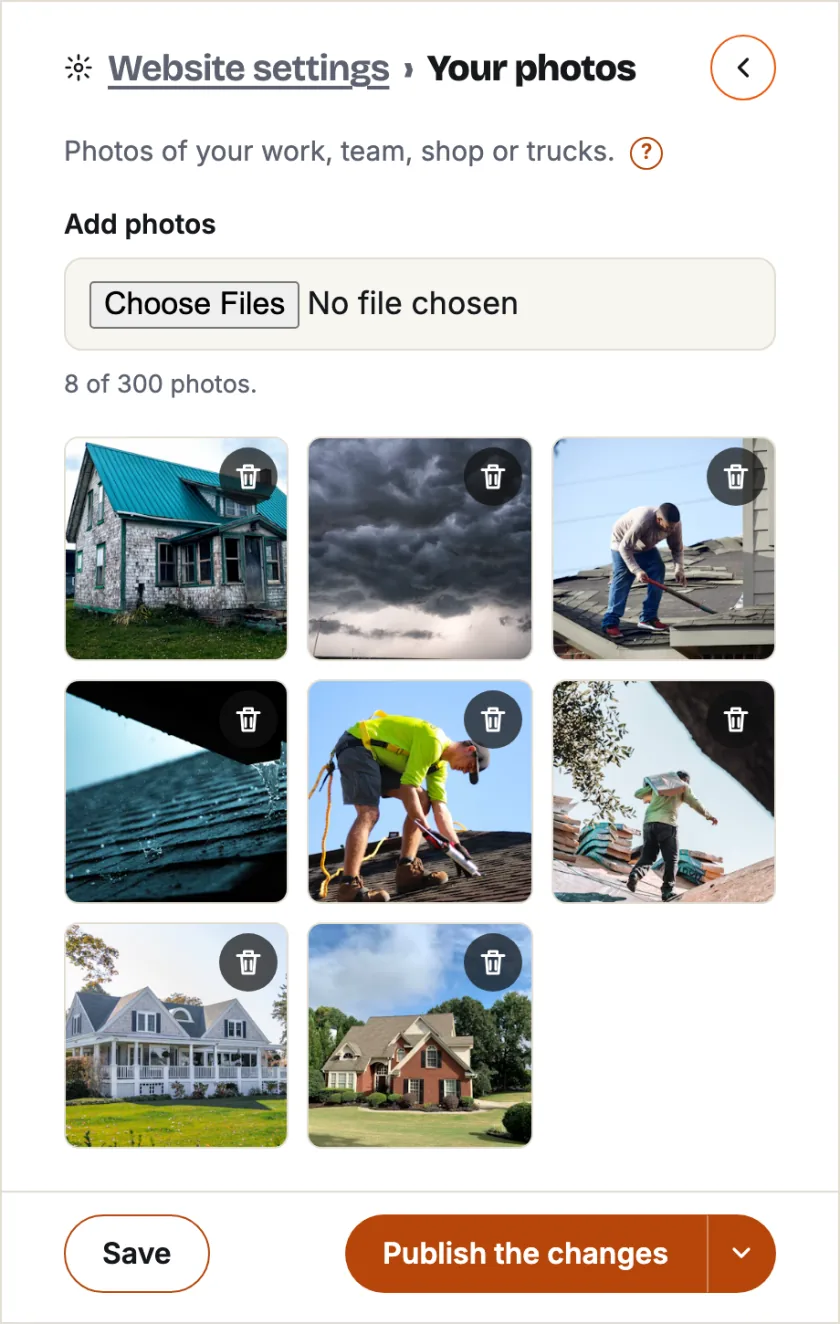
All your photos in one place: add them (JPG, PNG, WebP, AVIF or HEIC, straight from your phone is fine) and remove the ones you do not want. To choose where a photo goes, click that place on your site.
Your work: the gallery#
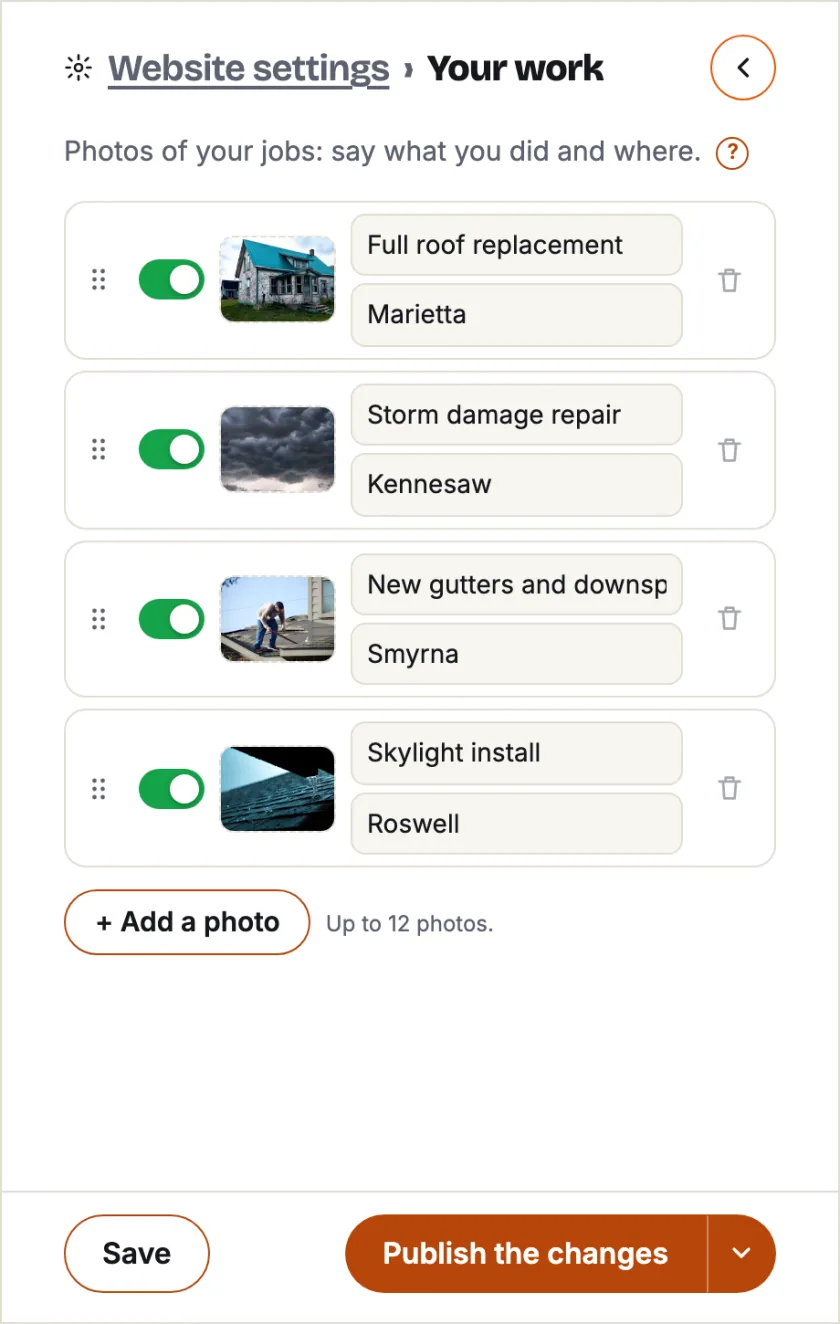
Photos of your jobs, up to 12. For each one say what you did and where, like Full roof replacement and Marietta: visitors see it under the photo, and town pages show the photos of their town. Drag to change the order; a photo switched off leaves the site but stays here. On the site, a click on a photo opens it large, with arrows to the next one.
Reviews#
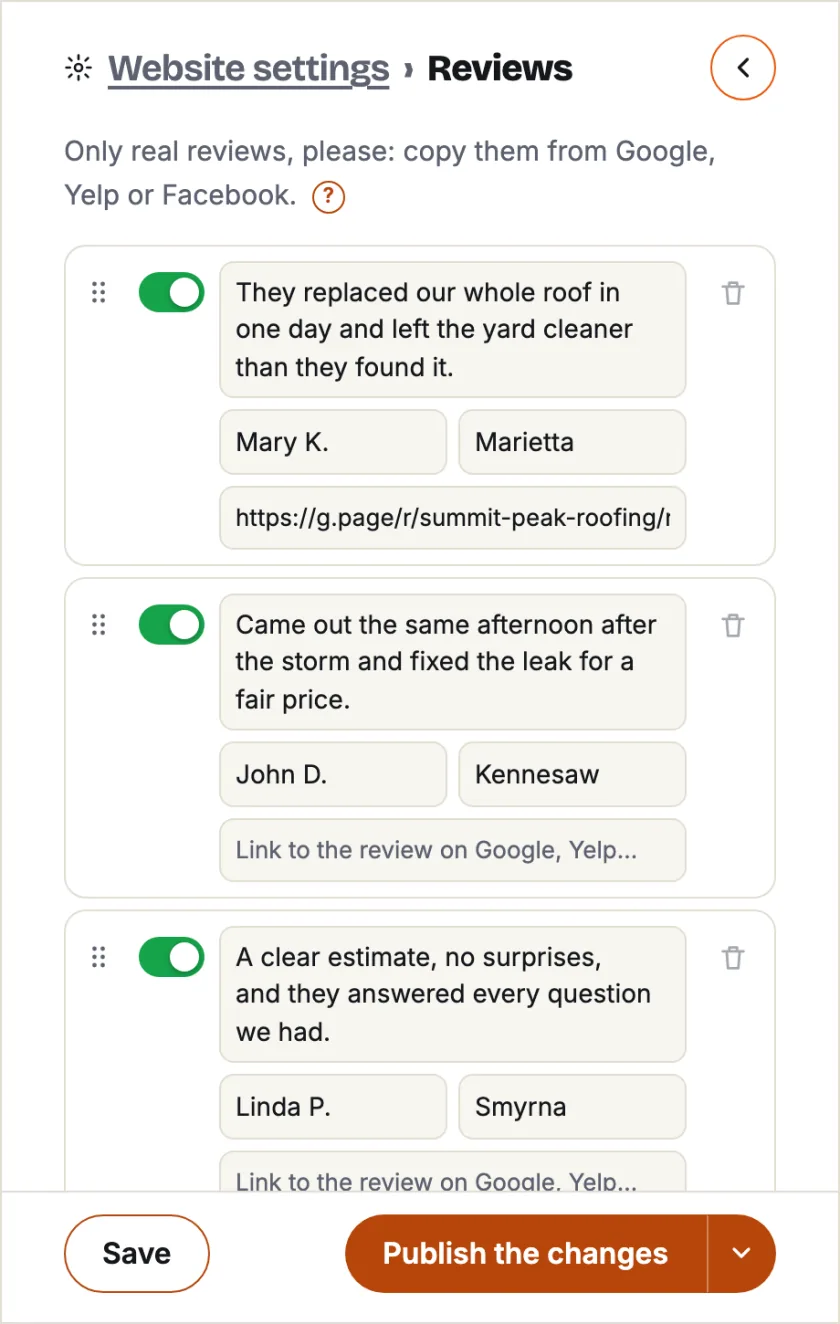
Up to 9 reviews. Copy them from Google, Yelp or Facebook: the text, the name and the town. Add a link to the original if you like: it shows as Read on Google under the review. Only real reviews, please.
Service area: your towns#
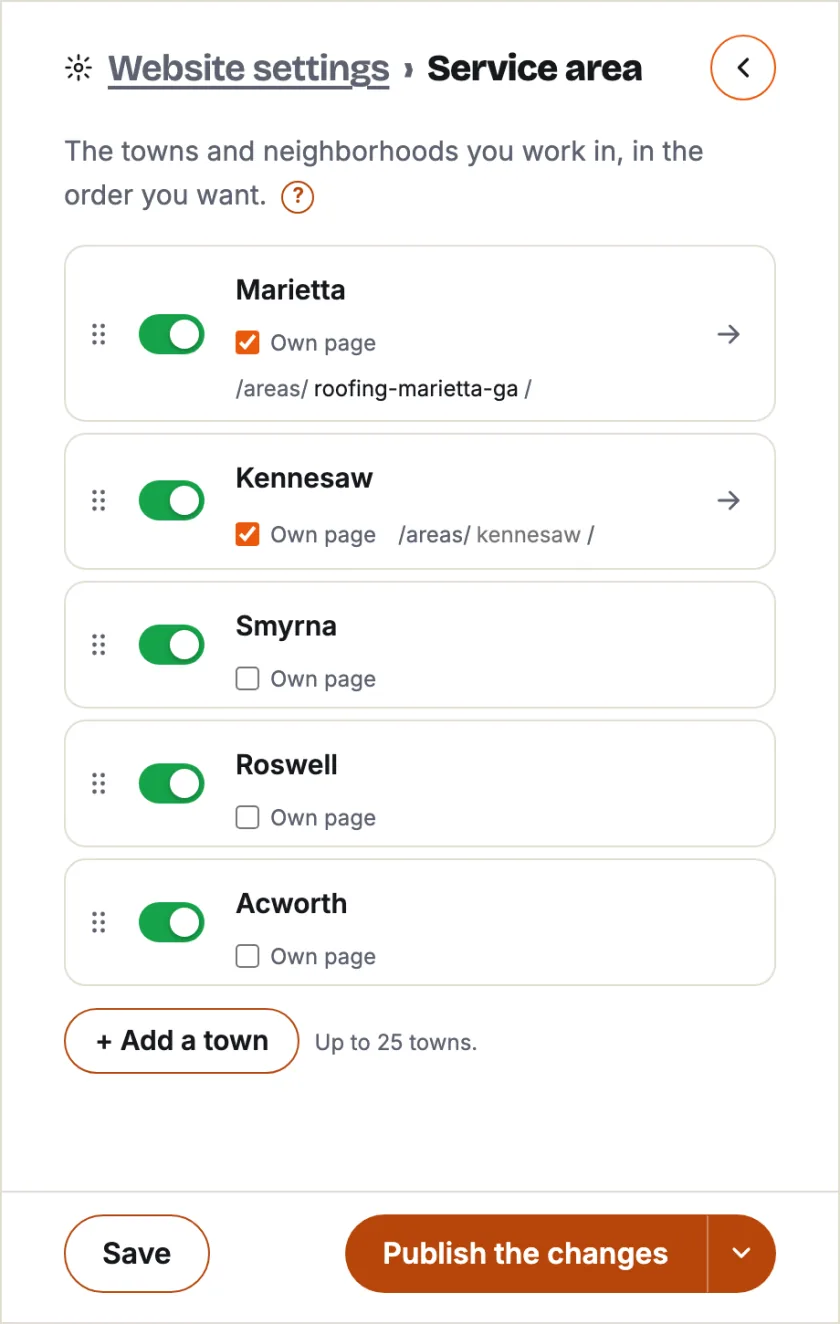
The towns and neighborhoods you work in, up to 25. They show on your home page and on the Areas page. Switch a town off to take it off the site; once off, you can delete it.
On roofing sites, tick Own page to give a town its own page, with an address you can change (like roofing-marietta-ga). Without it, the town is listed by name only. Barbershops and salons have no service area.
Pages and the menu#
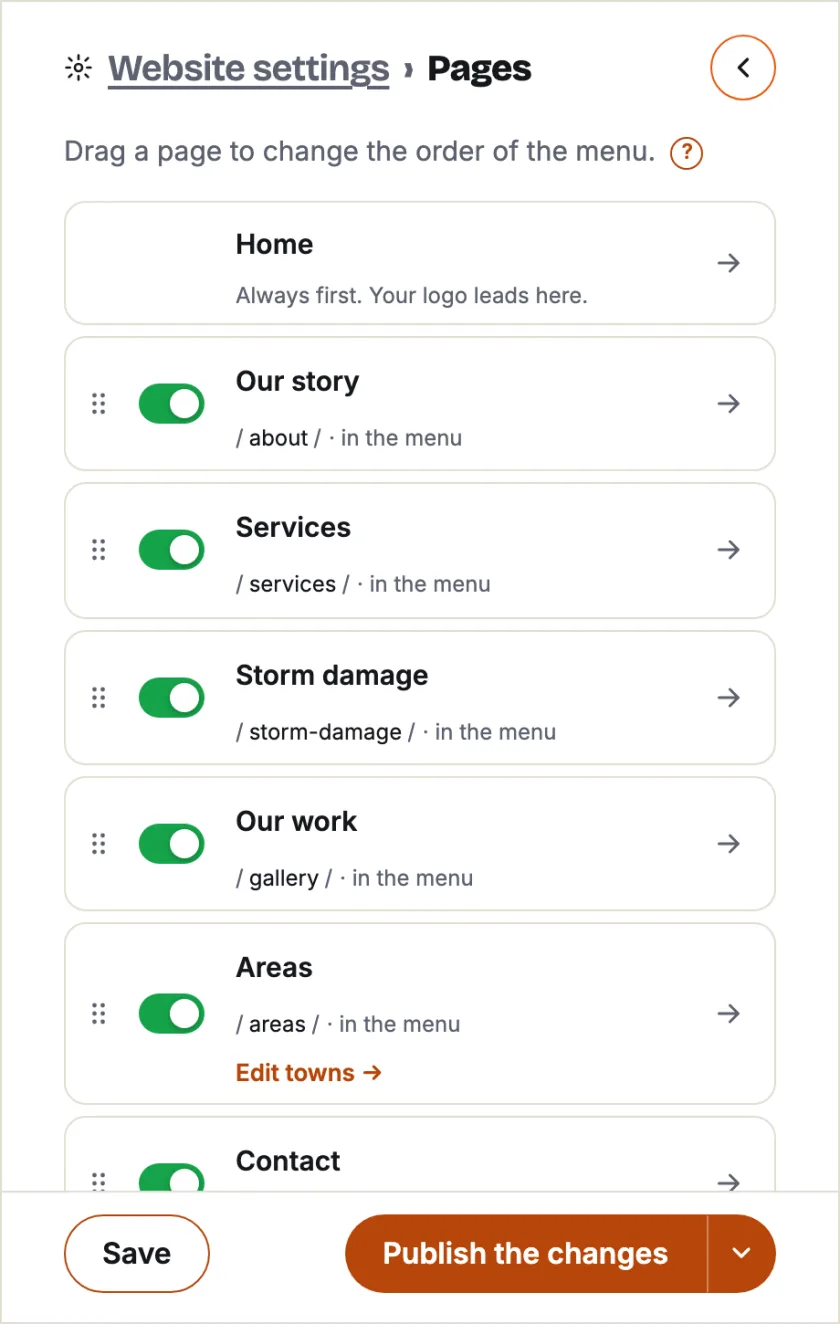
- Drag a page to change the order of the menu. Click a name or an address to change it; the old address keeps leading to the new one.
- A page switched off leaves the menu and Google; links to it still work.
- Add a page for anything else: Financing, Warranty, Careers. It starts with a top, a text and your button; you write it on the page itself. Your own pages are not in the menu: tick In the footer to link them under Useful links, and drag those to set their order.
- Sections: below the top, every page of yours has the same set of sections, in your site's look: Text, Text with photo (photo left or right), Cards (3 to 6 reasons to choose you), Questions, Your work, Reviews, Services, Prices and the Request form. The ones not in use are faded on the page. Point at a section (tap it on a phone): Show puts it on your site, Hide takes it off (its words are kept), the arrows move it, Duplicate (on a Text or a Text with photo) adds a copy right under it, so a page can have several Texts with photos. Every other section is there once.
- Links: in a Text, a Text with photo or the answer to a question, select a few words and press Link under the text, then pick one of your pages or type a web address. B makes words bold; Enter starts a new paragraph.
- Town pages (roofing) have the same sections, all off at first. A Text with a few sentences about your work in that town, with links to your services and nearby towns, helps the page show up on Google.
- To delete one of your own pages, switch it off first: the bin appears.
Publish, Website status and Google#
Your changes go online only when you press Publish my website (later Publish the changes). It asks once more, so a press by mistake changes nothing.
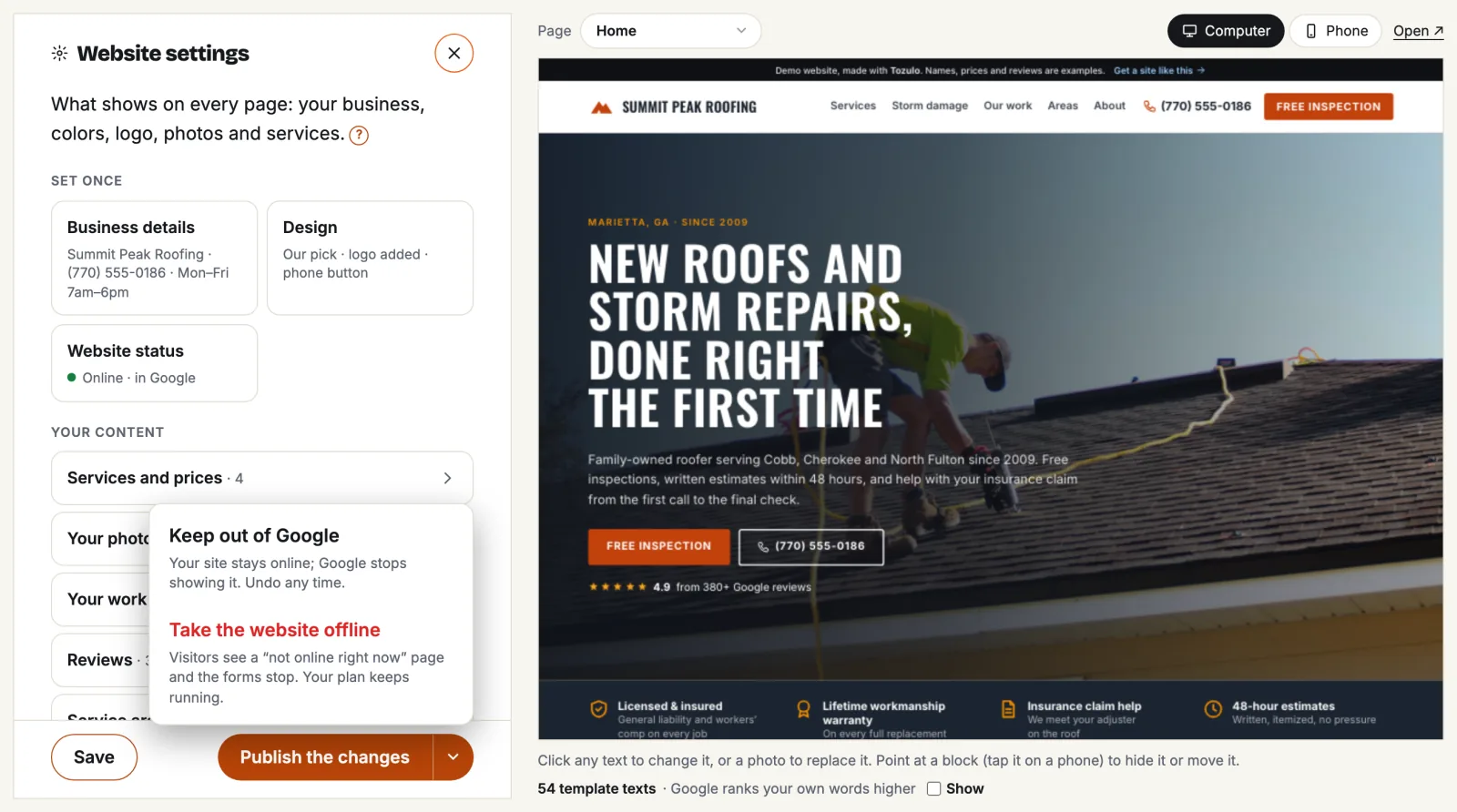
Website settings → Website status shows where your site stands and lets you change it:
- Online and in Google: the usual. Everyone can open your site, and Google shows it in search.
- Online, kept out of Google: the site opens for anyone with the link, but Google stops showing it. Handy while you are still filling it in.
- Offline: every address of your site shows a short not online right now page and the forms stop. Your plan keeps running.
The same choices are in the arrow beside the Publish button. Your account shows the status too, with a Change link.
Your website address and domain#
In your account, press Use a custom domain (or Edit domain) next to your website's address. Your site has one main address: Google and visitors see it. Every other address sends visitors to it, so old links keep working.
- Free address (yourname.tozulo.net): yours while your plan runs. Edit next to it picks another name, once in 90 days; the old one sends visitors to the new one for 90 days.
- Use a domain you own: type it the way people should see it, bobsroofing.com or www.bobsroofing.com. The other spelling sends visitors to it. Then sign in where you bought the domain, open its DNS settings and add the two records the page shows:
@ means the domain itself. Some DNS companies call ALIAS ANAME, or let you add a CNAME for @ (Cloudflare, Namecheap, Porkbun). GoDaddy and Squarespace have none of these: connect www. your domain there, and turn on their forwarding from the domain to the www address.Type Name Value ALIAS @ connect.tozulo.net CNAME www connect.tozulo.net
A subdomain works too, like site.bobsroofing.com: it needs just one CNAME record, named site. - An old A or CNAME record with the same name? Delete it first. Keep the MX records: they carry your email.
- DNS changes usually show within an hour, sometimes up to a day. We check every 2 hours for the first 3 days; Check now checks at once. When it works, the secure connection (https) is on and your first own domain becomes the main address by itself.
- Make main switches the main address; Remove takes a domain off your site. Changed the main address? Update it on your Google Business Profile, Facebook and business cards too.
- Buy a new domain: almost any ending (.com, .net, .co, .us, .pro and over 360 more: ), registered in your name so it is yours. Check shows the price for the first year and for each year after. It connects to your website by itself within minutes, and we email you when it works. It renews automatically each year on your card; the Auto-renew switch is next to it. Not available: .giving, .mom, .inc, .lol, .sh, .link, .cc and .new, and premium names (names a registry sells at its own high price). A domain registration cannot be refunded.
When we build it for you#
With Build it for me, send us what you have and we do the rest. We start as soon as you send your details; with nothing from you within 5 days, we build from your order. While we build, the editor is closed: you see We are building your website, and Forgot something? sends us more photos or notes.
- We email you the preview. You get two rounds of changes: write everything to change at once, then we send the preview again.
- Press Approve and launch when you like it. No answer within 14 days after a preview: it goes online, not in Google until you choose Online and in Google. From launch day the editor is yours.
- For a website alone, nothing more is charged while we build. On the monthly plan your first month is free: the plan starts a month after launch. A yearly plan starts on launch day.
The full rules: Terms, When we build your website.
Your plan: add, pause or cancel#
- Manage plan in your account adds the CRM to a website, or a website to a CRM. It works at once: your card is charged the difference for the rest of the billing period, and the receipt comes by email.
- Pause for a slow season, once every 12 months: the first month is free.
- Cancel: everything keeps working until the end of the paid month.
- Storage: a website holds up to 300 photos and 5 GB, a CRM 25 GB for photos and files. Manage plan shows how much you use.
Need a hand?#
Stuck, or want us to do it? Press Ask our team at the top of the editor and tell us what you need: we reply within one business day, with a quote first if it is paid work. Something broken? Report a problem goes straight to us too. Or write to hello@tozulo.com.